
The Filter Applicants by Status feature gives you precise control over which applicants different user permission levels can access. This allows you to tailor visibility based on workflow needs and streamline collaboration across your hiring team. Any changes you make will take effect immediately for all users assigned to that permission level.
Customizing User Permissions by Role
Accessing Workflow Settings
Go to Main Menu > Account Details.
On the Account Details page, select the Workflow icon.

This will take you to the Workflow page.
Configure “Filter Applicants By Status”
Scroll down to the Filter Applicants By Status section.
Step 1: Select a Permission Level
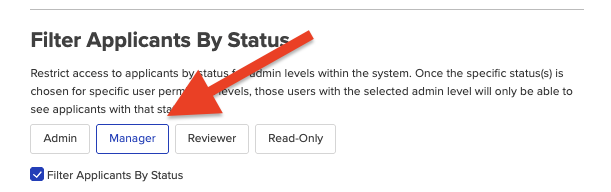
Click the user permission level you want to customize. Then, check or uncheck the Filter Applicants By Status box to enable or disable status-based filtering for that role.
Step 2: Choose Which Statuses Are Visible
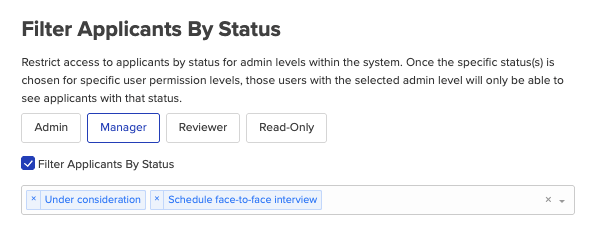
Click the down arrow in the dropdown menu to view the list of available applicant statuses.
Select one or more statuses to define which applicants users with that permission level can see.
You can update these selections at any time—your changes will apply instantly.
Important Notes
If Filter Applicants By Status is checked but no statuses are selected, users assigned to that permission level will not be able to see any applicants.
To avoid this, always choose at least one status when enabling the filter.These settings apply account-wide for everyone assigned to that permission level.
This feature may be available only on certain plan levels that support advanced permissions.
That’s all there is to it! With Filter Applicants By Status, you can easily customize user visibility and maintain control over your hiring workflow.
